
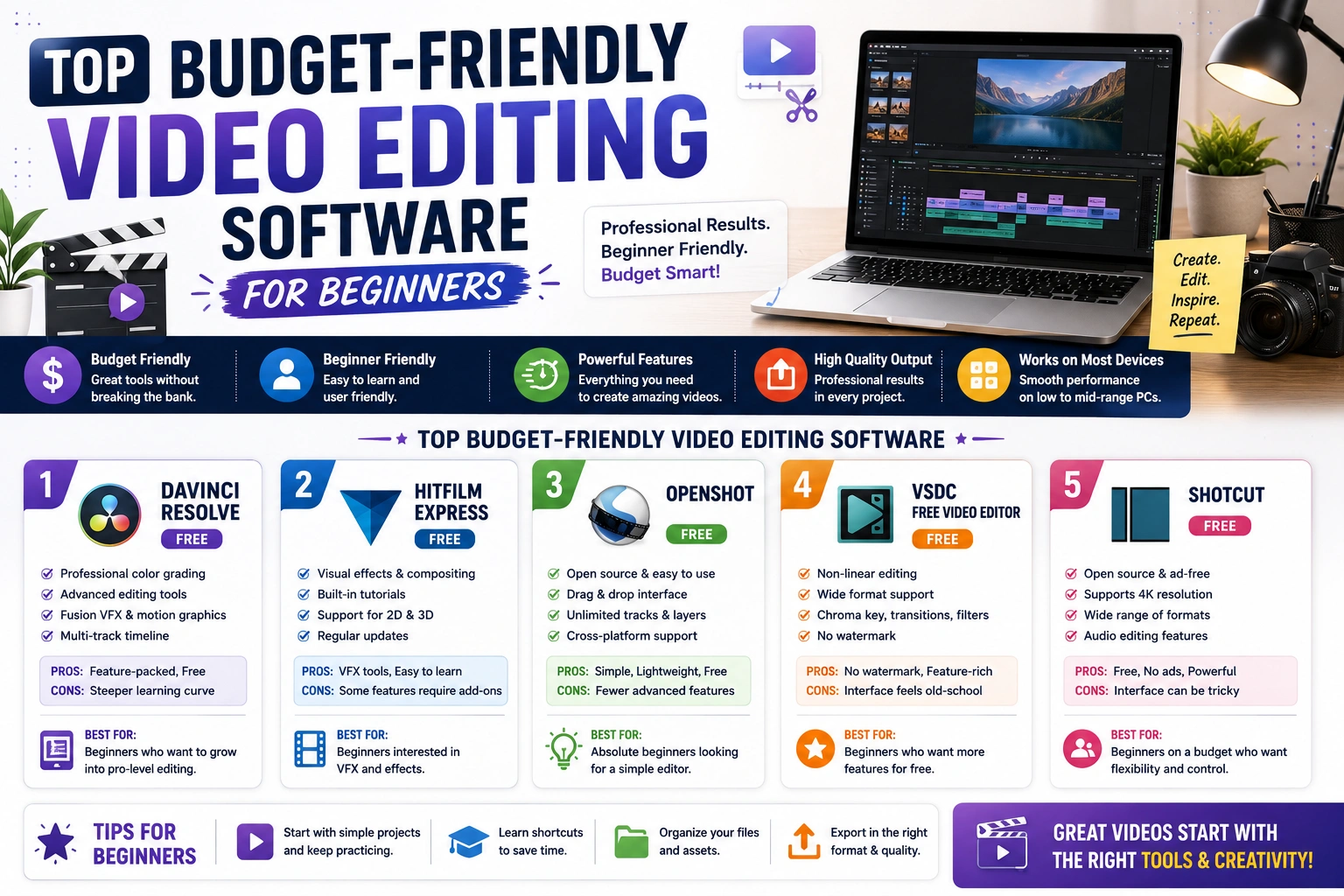
In 2026, video content is no longer just an option for digital creators—it is an absolute necessity. Whether you are launching a YouTube channel, creating short-form Reels to promote your business, or building video tutorials for your website, video is the most engaging medium on the internet.
However, for beginners, the world of video editing can feel incredibly intimidating. When you search for editing tutorials online, you are often bombarded with professionals using complex, industry-standard tools like Adobe Premiere Pro or Final Cut Pro. While these tools are incredibly powerful, they come with a massive learning curve and steep monthly subscription fees that can quickly drain a new creator’s budget.

The good news? You do not need to spend $50 a month to create high-quality, professional-looking videos. The software market has evolved dramatically, and there are now incredible, budget-friendly (and even completely free) video editing tools designed specifically for beginners.
In this comprehensive guide, we will break down the top budget-friendly video editing software available today, helping you choose the perfect tool to start your creator journey without breaking the bank.
What Should Beginners Look for in Video Editing Software?
Before downloading the first software you see, it is important to understand what makes an editing tool “beginner-friendly.” Here are the core criteria you should evaluate:
- Intuitive User Interface (UI): As a beginner, you want a workspace that is clean and drag-and-drop friendly. You shouldn’t have to watch a three-hour tutorial just to figure out how to cut a clip in half.
- Hardware Requirements: Video editing is notoriously heavy on computer resources. A good beginner tool should run relatively smoothly on a standard laptop without requiring a $2,000 custom-built gaming PC.
- Built-in Assets: The best budget tools come with royalty-free music, text templates, and transition effects built directly into the software, saving you the hassle of hunting for third-party plugins.
- Export Options without Heavy Watermarks: Many “free” tools force a massive, ugly watermark across your final video unless you pay. We are looking for software that allows clean exports, at least in 1080p resolution.
With these criteria in mind, let’s dive into the top recommendations.
1. CapCut (Desktop & Web) – Best for Absolute Beginners
Originally known as the mobile app that powered the TikTok revolution, CapCut has expanded into a fully-featured desktop application and web browser editor. It is currently the undisputed king of beginner-friendly editing.
Key Features:
- AI-Powered Magic: CapCut excels at utilizing artificial intelligence to speed up your workflow. It features auto-captions (which generate highly accurate text on screen in seconds), background removal without a green screen, and one-click color correction.
- Trend-Ready Templates: If you are editing short-form content (Reels, TikToks, Shorts), CapCut has a massive library of trending transitions, text effects, and stickers.
- Pricing: The core software is 100% free and does not leave a watermark on your video. There is a “CapCut Pro” version (around $9.99/month) that unlocks premium animations and advanced AI tools, but the free version is more than enough to build a channel.
Verdict: If your primary goal is creating fast, engaging content for social media, CapCut is the only tool you need to get started.
2. DaVinci Resolve – Best for “Free” Professional Power
DaVinci Resolve is an anomaly in the software world. It is a Hollywood-grade editing suite used to edit major blockbuster movies, yet the company (Blackmagic Design) gives away the standard version completely for free.
Key Features:
- Unmatched Color Grading: DaVinci Resolve started as a color correction tool, and its color grading panel is the most powerful in the world. If you want your videos to have a cinematic, highly professional look, this is the tool.
- All-in-One Suite: It includes dedicated workspaces for editing, audio mixing (Fairlight), visual effects (Fusion), and exporting.
- Pricing: The standard version is free, forever, with no watermarks. The “Studio” version costs a one-time fee of $295, but 95% of creators will never need the Studio features.
The Catch: DaVinci Resolve has a steep learning curve. It is not as simple as CapCut, and it requires a relatively powerful computer with a dedicated graphics card to run smoothly.
Verdict: Choose DaVinci Resolve if you are serious about filmmaking, long-form YouTube documentaries, or want to learn a skill that translates into the professional film industry.
3. Wondershare Filmora – Best Balance of Cost and Ease of Use
If you find DaVinci Resolve too complex but want something a bit more traditional than CapCut, Wondershare Filmora is the perfect middle ground. It has been a staple in the YouTube community for years because of its incredibly short learning curve.
Key Features:
- Drag-and-Drop Interface: Filmora’s timeline is incredibly forgiving. It is designed to be as straightforward as possible, making it easy to layer audio, video, and text.
- Built-in Asset Store: Filmora gives you access to Filmstock, a massive library of royalty-free video clips, music, and Hollywood-style visual effects templates.
- Pricing: Filmora offers a free trial, but it places a large watermark on your exports. However, unlike Adobe, Filmora offers a “Perpetual License.” For a one-time fee of around $79.99, you own that version of the software forever, making it highly budget-friendly in the long run.
Verdict: Filmora is excellent for creators who want a traditional, easy-to-use desktop editor for vlogs, tech reviews, and educational tutorials without paying a monthly subscription.
4. Clipchamp – Best for Quick, Browser-Based Edits
Acquired by Microsoft and now integrated natively into Windows 11, Clipchamp has quietly become a highly capable, cloud-based video editor.
Key Features:
- No Installation Required: Because Clipchamp can run directly within your Google Chrome or Microsoft Edge browser, you do not need to download heavy software. This makes it perfect for users with older or lower-spec computers.
- Direct Integrations: It seamlessly integrates with OneDrive, Google Drive, and Zoom, allowing you to pull in webinar recordings or screen captures instantly.
- Pricing: The free tier allows unlimited video exports in 1080p HD without a watermark. The premium tier (included in some Microsoft 365 plans) unlocks premium stock footage and brand kits.
Verdict: If you are a digital operator recording quick screen-capture tutorials for clients, or if you need to trim a webinar recording on a low-end laptop, Clipchamp is your best hassle-free option.
5. Kdenlive – Best Open-Source Alternative
For the tech-savvy creators who refuse to deal with subscriptions, paywalls, or corporate ecosystems, Kdenlive is the ultimate open-source solution.
Key Features:
- Completely Free and Open Source: Kdenlive is maintained by a community of developers. There are no “Pro” versions, no hidden fees, and absolutely no watermarks. You get the full software immediately.
- Multi-Track Editing: It supports limitless video and audio tracks, allowing you to build highly complex timelines.
- Pricing: $0. Free forever.
Verdict: While the interface looks a bit older compared to modern tools like Filmora, Kdenlive is incredibly stable and reliable for those on a strict zero-dollar budget who want traditional editing capabilities.
Final Thoughts: Which Software Should You Choose?
Do not let the paradox of choice paralyze you. The truth is, your audience cares far more about your audio quality, your storytelling, and the value you provide than they do about which software rendered the final file.
- If you are editing Shorts, Reels, or fast-paced TikToks, download CapCut.
- If you want to become a professional editor and have a strong computer, download DaVinci Resolve.
- If you want an easy YouTube vlog editor for a one-time price, buy Filmora.
Pick one software today, watch a 30-minute beginner tutorial on YouTube, and start cutting your first video. The only way to master video editing is by actually doing it.

